How Can I Install Youtube Highlighter on Brave?
Learn how to add the Youtube Highlighter extension to the Brave browser. Our guide makes installing any Chrome extension on Brave easy and straightforward.
Although Youtube Highlighter & AI Summary isn't directly available in the Brave browser store, you can still install it because Brave is Chromium-based. Many Chromium-based browsers, including Brave, support installing extensions from the Chrome Web Store with just a few simple steps.
Here are the steps to install Youtube Highlighter & AI Summary on the Brave browser:
- Open the Brave browser
- Go to Youtube Highlighter in the Chrome Web Store.
- Click "Add to Brave" on the top-right of the page.
- A notification will appear detailing the data and permissions you are granting. Read it carefully and confirm.
- Manage your installed extensions by going to Menu > More Tools > Extensions.
If you need a basic guide on installing a Chrome Extension on Brave, take a look at our generic guide.
What is the Youtube Highlighter & AI Summary?
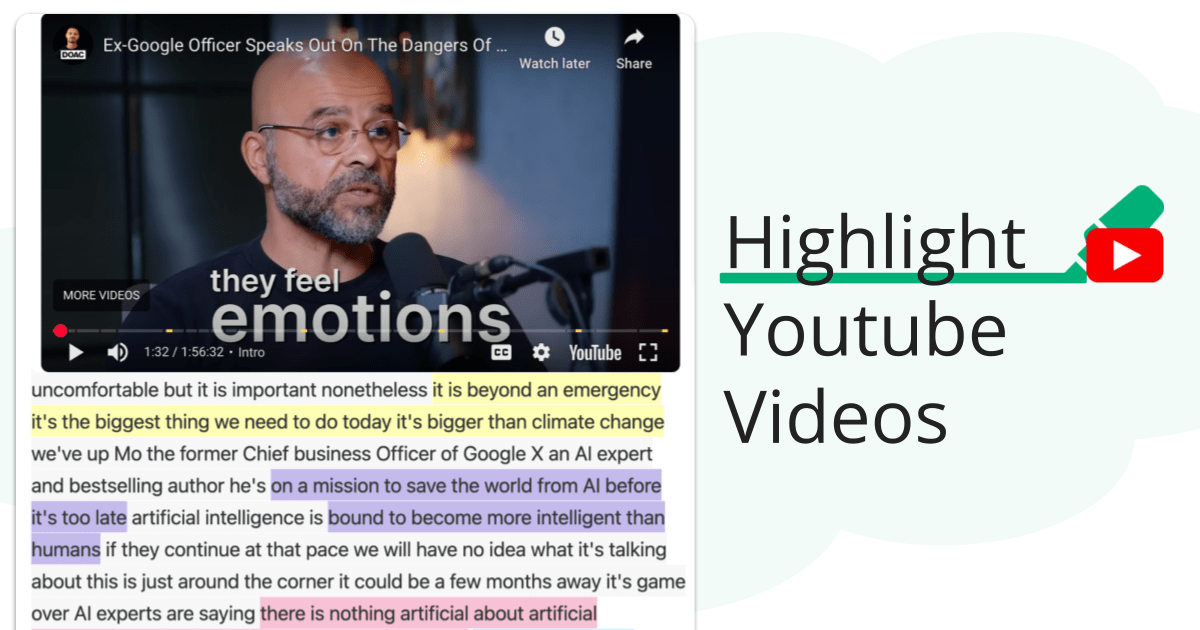
Highlight and annotate YouTube transcripts. Generate AI summaries and chat with the video content to turn it into clear, searchable notes and annotations.
Is Youtube Highlighter a good extension?
Youtube Highlighter & AI Summary earned a score of 9.5 out of 10 in our tests. A rating like this indicates an outstanding and rare tool, showcasing exceptional performance in every aspect.
Read our full review of Youtube Highlighter here .
 Youtube Highlighter
  PDF & Web Highlighter
  Text Blaze
  Quillbot
  LanguageTool